If your tickets were delivered through Vivenu, you’ll need to accept the transfer and view them through the venue or performer’s Vivenu-powered ticketing page. Follow the steps below to access your tickets.
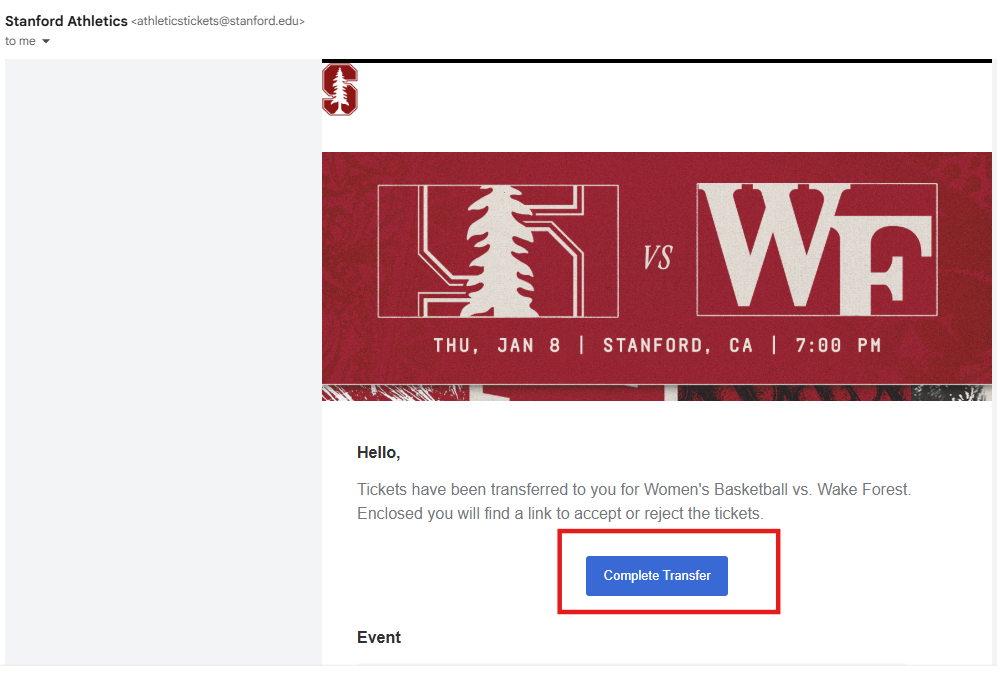
1. Check for the Transfer Email
Vivenu ticket transfers are sent directly from the venue or performer, not from GoTickets.
Look for an email with a subject line similar to:
“Tickets to [Event Name] have been transferred to you”Open the email and click the Accept or Complete Transfer button to begin.
Can’t find the email?
Search your inbox for the event name, venue, or performer.
Check your spam or junk folders.
Make sure you’re checking the same email address used when placing your order.
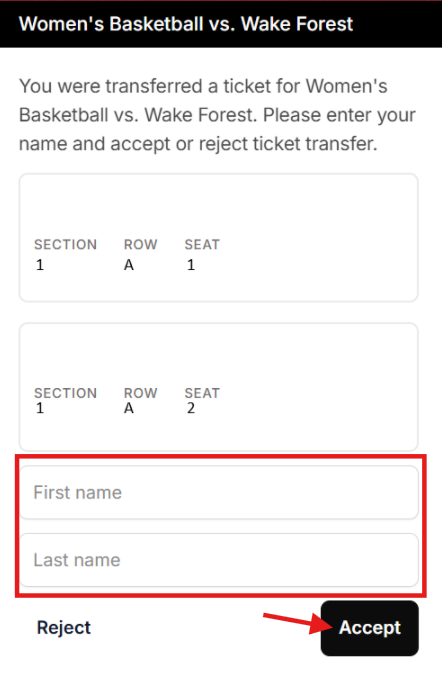
2. Enter Your Name and Accept the Transfer
After clicking the link in the email, you’ll be taken to the Vivenu transfer page.
Enter your first and last name as prompted.
Click Accept to complete the transfer.
Once accepted, the tickets are immediately assigned to you.
3. View Your Tickets and Barcode
After accepting, you’ll be redirected to the event page showing your seating details.
Tap or click on your seat information to view your ticket barcode.
The barcode will display directly on the page and is ready for entry.
Tip: Barcodes are best viewed on a mobile device.
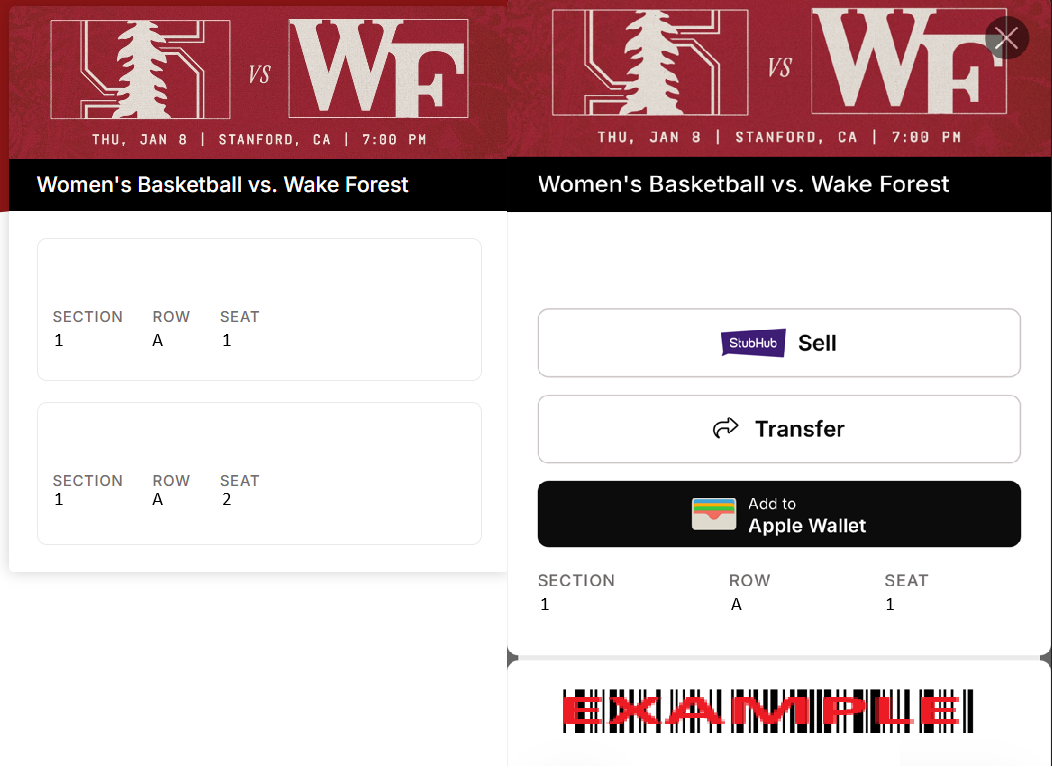
4. Save to Your Digital Wallet (If Available)
If the option appears, select Add to Apple Wallet or the Android equivalent.
Saving to your wallet allows for quick access at the venue, even without an internet connection.
Don’t see a wallet option?
No problem — you can scan your ticket directly from the Vivenu link on your phone.
Still need help?
If you’ve followed these steps and still can’t access your tickets, start a live chat with us. Our team can confirm the transfer status and make sure you’re ready for entry.
Was this article helpful?
That’s Great!
Thank you for your feedback
Sorry! We couldn't be helpful
Thank you for your feedback
Feedback sent
We appreciate your effort and will try to fix the article